January 24th, 2026
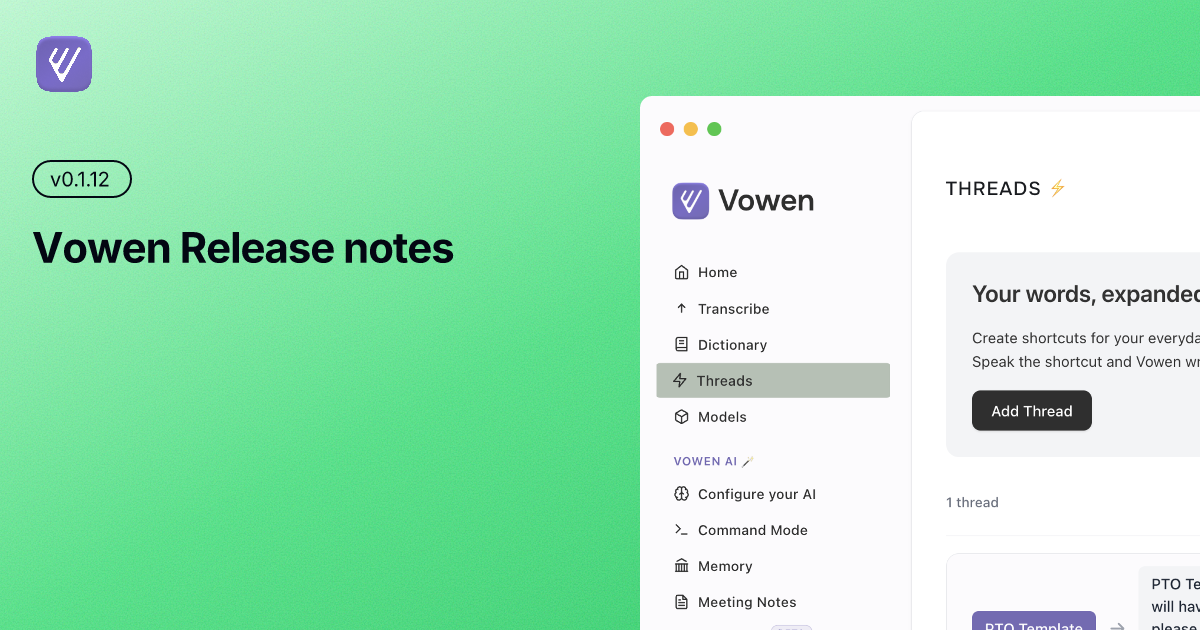
Vowen 0.1.12 Release Notes
Released: January 24, 2026
What's New
New AI Providers & Expanded Model Support
Straico Support
We're excited to announce support for Straico, a powerful multi-model AI platform that gives you access to 50+ cutting-edge AI models from the world's leading providers—all through a single API.
With Straico, you get:
Amazon Models: Nova Lite, Nova Micro, Nova Pro
Anthropic Models: Claude 3 Opus, Claude 3.5 Haiku, Claude 3.5 Sonnet, Claude 3.7 Sonnet, Claude Opus 4, Claude Sonnet 4.5
DeepSeek Models: DeepSeek Chat, DeepSeek R1, DeepSeek R1 Nitro, DeepSeek Chat v3.1
Google Models: Gemini 2.5 Flash, Gemini 2.5 Flash Lite, Gemini 2.0 Flash, Gemini Pro 1.5, Gemma 2 27B IT
OpenAI Models: GPT-4.1, GPT-5, O1, O3 Mini, O4 Mini, and many more
To get started:
Get your API key from Straico Platform
Navigate to Configure your AI → AI Provider
Select "Straico (Multi-Provider)" from the dropdown
Enter your API key and choose your preferred model
Expanded OpenRouter Models
We've significantly expanded the model selection for OpenRouter users, adding the latest and most powerful models:
OpenAI O4 Series: O4 Mini, O4 Mini High
Amazon Nova Series: Nova Lite v1, Nova Micro v1, Nova Pro v1
Google Gemini 2.5: Gemini 2.5 Flash, Gemini 2.5 Flash Lite, Gemini 2.5 Pro Preview
Anthropic Claude 3.7: Claude 3.7 Sonnet (with and without thinking mode)
DeepSeek R1: Including the powerful DeepSeek R1 Nitro variant
✨ New Features
Copy Last Transcription
Quick access to your most recent transcription! We've added a convenient menu option to copy your last transcription directly to your clipboard.
How to use:
Simply click the Vowen menu and select "Copy Last Transcription"
Perfect for when you need to access your previous transcription again
No need to open the history window for quick re-use
Clipboard Restoration Control
You're now in full control of your clipboard behavior. This new setting lets you choose whether to restore your original clipboard content after transcription is pasted.
How it works:
Go to Settings → General
Find the "Restore clipboard after paste" option
Toggle it based on your preference:
Enabled (default): Your original clipboard is automatically restored after transcription
Disabled: The transcription remains on your clipboard
This gives you the flexibility to choose the workflow that works best for you.
Shortcut Conflict Prevention
Vowen now prevents you from assigning the same keyboard shortcut to multiple actions.
What you'll experience:
When setting a shortcut, Vowen checks if it's already in use
Clear warning message if you try to use a duplicate shortcut
Guides you to choose a different, unique key combination
Ensures every action has its own distinct shortcut
Multilingual Command Mode
Command mode is now truly global! Command mode now works seamlessly with all supported languages, not just English.
What this means:
Use voice commands in French, Spanish, Dutch, German, and any other supported language
Commands are properly recognized regardless of your selected language
More consistent experience for international users
Better integration with non-English workflows
🔧 Improvements & Fixes
Cloud Model Thread Support
Threads support now works seamlessly with all cloud transcription providers.
We've fixed language auto-detection issues with Deepgram and Groq cloud models, resulting in more accurate transcriptions when using the "Auto" language setting. The models now correctly identify and transcribe in the spoken language without manual configuration.
Additional Bug Fixes
Improved reliability of cloud transcription services
Enhanced error handling for edge cases
UI polish and consistency improvements across the application
📥 Download & Update
If you haven't already, Vowen will automatically notify you about this update. You can also:
Auto-update: Accept the prompt when it appears
Manual download: Visit vowen.ai
Thank You 🙏
As always, we're grateful for your continued support and feedback. This release brings powerful new AI capabilities and workflow improvements based on your requests.
Have questions, feature requests, or found a bug? We'd love to hear from you:
Email: hello@vowen.ai
Changelog: vowen.featurebase.app/changelog
Feature Requests: vowen.featurebase.app